.svg)



The first five minutes of every recurring meeting get spent reconstructing the last one. Someone hunts for notes, someone else recaps from memory, and the actual agenda starts late. Multiply that across a week of recurring calls and it becomes one of the more expensive habits in knowledge work.
Microsoft 365 Copilot in Teams handles more of that than most teams realize. Recap is the feature people know, but the meeting lifecycle in Teams now runs from configuration through follow up. Intelligent recap, audio and video recap, Facilitator, Loop notes, and meeting templates work together to capture a meeting, write structured notes, assign tasks, and carry that context into the next conversation. No one has to take notes, and no one has to remember to hit record.
How does Microsoft 365 Copilot Work in Teams Meeting?
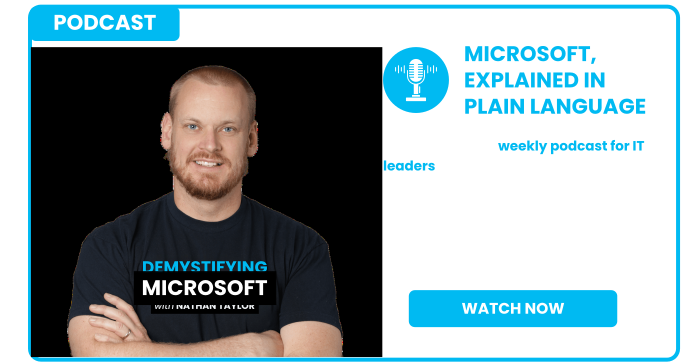
In this episode of the Demystifying Microsoft podcast, host Nathan Taylor (Sr. VP and Global Microsoft Practice Leader at Sourcepass) walks through the Copilot meeting features he uses every day. The episode includes a live demo of how to configure Facilitator, recording, and transcription to run automatically on every meeting you schedule.
What is Meeting Recap in Microsoft Teams?
Recap generates automatically at the end of any meeting you record or transcribe when you have a Microsoft 365 Copilot license. It gives you a high level overview of what was discussed and, more usefully, the action items that came out of the call.
Intelligent recap adds AI assisted navigation on top of that. Instead of reading a summary or scrubbing through a recording, you can jump directly to a decision, a task, a specific speaker, or a topic. If you remember that a decision was made but not the reasoning behind it, you can land on that moment in the conversation in seconds.
What are Audio Recap and Video Recap in Microsoft Teams?
Two newer formats change how you catch up on meetings you missed. Audio recap plays a condensed spoken version of the written recap, and because it saves to OneDrive, you can listen during a commute or anywhere reading is not practical. Video recap does the same thing, but it pulls in short clips from the call so you get the key moments on screen instead of a description of them.
Both are built for the reality of a booked calendar. If you are double or triple booked and all three meetings matter, you sit in the one that needs you and pick up the other two in a few minutes afterward.
Do you Need Teams Premium or Microsoft 365 Copilot for Meeting Recap?
Both licenses include meeting recap, but only Microsoft 365 Copilot lets you query it.
|
Capability |
Teams Premium |
Microsoft 365 Copilot |
|---|---|---|
|
Meeting recap |
Yes, limited feature set |
Yes, full feature set |
|
AI querying during the call |
No |
Yes |
|
AI querying against recap afterward |
No |
Yes |
|
Facilitator notes in Loop |
No |
Yes |
Teams Premium gives you the recap. Microsoft 365 Copilot gives you the ability to interrogate it, which is where most of the value sits.
What is Microsoft 365 Copilot for Business?
Microsoft 365 Copilot for Business is a Copilot license built for organizations under 300 users. It requires a Business license as the base, so it cannot be added to E3 or E5.
Business Premium and its add ons already cover what most small organizations need, and the Copilot for Business SKU runs roughly 30% cheaper than the full enterprise Microsoft 365 Copilot license. It is the same product with the same capabilities. The differences live in edge case enterprise features that rarely apply below 300 seats.
If you already deployed Copilot, your renewal date is the moment to evaluate whether you can move to the Business SKU and keep the savings.
What does Facilitator Do in a Teams Meeting?
Facilitator appears as a toggle when you schedule a meeting in Outlook or under the three dot menu during a call. On the surface it acts like a meeting assistant, surfacing the agenda, flagging the halfway point, warning you when five minutes remain, and occasionally pulling in real-time highlights.
The real value is what it writes. Recap produces a high level AI summary. Facilitator produces a detailed set of notes, and the difference shows up fast in technical meetings where you are working through roles, responsibilities, processes, and task assignments. Those notes capture the agenda, decisions, topics, and assigned tasks with far more granularity than a recap ever will.
Where are Facilitator Notes Saved in Microsoft Loop?
Facilitator notes are accessible from the Teams meeting interface, but they are actually saved as a Loop document. Because they live in Loop, the notes are editable, portable, and connected to the rest of Microsoft 365.
-
Tasks become Planner tasks. Anything assigned in the Loop document can be pushed directly into Planner or Microsoft To Do without retyping or re importing.
-
Notes collect into a workspace. Move the Loop documents into a Loop workspace and you can review an entire meeting series in one place instead of hunting meeting by meeting.
-
You can edit alongside the AI. The notes tab populates inside the Teams meeting and in the Loop interface, so you can add your own structure while Copilot writes.
Under the hood, Loop stores content in Markdown. Markdown is one of the formats AI parses most reliably, which is why Facilitator notes feed cleanly into Work IQ.
What is Work IQ in Microsoft 365?
Work IQ is Microsoft's understanding of you as a user. Your role, your team, your recurring tasks, the documents you build, and how you work across Teams and email. Facilitator notes written into Loop documents flow into that layer.
The result is that Copilot answers better questions. Ask for an update on a customer and you get recent emails, recent Teams threads, and the meeting context from every call you have had with them, including status and links back to the source material. For anyone who meets with a client once a month and cannot recall where the project stands, that is the difference between five minutes of prep and none.
One caveat worth setting expectations around. Facilitator notes sometimes take a few minutes to populate after a call ends rather than appearing in real time. The value is in the post meeting review, so plan around that rather than expecting live output every session.
How Do you Turn On Facilitator Automatically in Teams Meeting?
Once you start relying on these notes, you will want them running by default rather than depending on someone remembering to click a toggle. There are two ways to set that up, one for recurring meetings and one for everything else.
For a meeting series, open the meeting in Outlook, go into options, and under record and transcribe turn on recording, transcription, and Facilitator. Apply the settings, then set the recurrence. Every occurrence records and generates Facilitator notes whether or not you attend, which is what builds the ongoing context Copilot draws from in later meetings.
For everything else, configure a single meeting with the settings you want, including lobby bypass, recording, transcription, and Facilitator, then save it as a template. Give it a name and it appears under templates in your Outlook calendar view. From there, one click gives you a fully configured Teams meeting instead of four clicks buried in the options menu.
Getting More Out of Meetings with Microsoft 365 Copilot
Meetings are the largest recurring cost in most knowledge work, and most of that cost comes from re establishing context that was already captured once. Recording, recap, Facilitator, Loop, and Work IQ together close that gap. The configuration takes one afternoon and a meeting template.
If you want to see how these capabilities apply to your environment, or you want to evaluate whether Microsoft 365 Copilot for Business fits your licensing at renewal, our team can walk you through a demo and set up trial licenses so you can test it before committing.
Subscribe to Demystifying Microsoft for breakdowns of Microsoft 365, Azure, licensing, and security.