

Skip to the main content.

Support My IT

Create a secure, scalable technology foundation that keeps your business productive and growing.

Untitled design (3)

Secure My Business

Reduce risk, strengthen resilience, and stay ahead of evolving cyber threats. 

Untitled design (3)

Automate My Business

Eliminate manual work, increase efficiency, and empower teams with AI and automation.

Untitled design (3)

Modernize My Technology

Transform legacy systems into modern platforms that improve performance and accelerate innovation.

Untitled design (3)

Commercial Industries

We understand what most managed service providers don’t – when it comes to industry-specific technology, one-size-fits-all solutions don’t exist.

Untitled design (3)

Public Sector

Specialized IT, cybersecurity, and compliance support for schools, BOCES, local governments, and utilities — backed by 40+ years of public-sector experience.  

Untitled design (3)

Locations

We serve clients across the lower 48, with regional concentration in the Northeast, Mid-Atlantic, Southeast, Mountain West, and West.  

Untitled design (3)

The Sourcepass Story

Built and run by technology, security, and managed services people who were tired of how IT gets delivered – and decided to do it differently. 

Untitled design (3)

The Sourcepass Experience

Excellent service, strategic guidance, and technology delivered with innovation – the operating model behind every Sourcepass engagement, across IT, security, Microsoft, and AI. 

Untitled design (3)


Introducing New Admin Feature in Quest®: User Management

 
Introducing New Admin Feature in Quest®: User Management

At Sourcepass, we're always working to give our clients more control, visibility, and efficiency when it comes to managing their IT experience. Learn more about our new User Management features in this article


quest-logomark About User Management


User Management is a new,  powerful user management feature designed for Primary Contacts. With this feature, Primary Contacts can now access further insight into their users, user level of support, and user access to Microsoft-related licenses. 


With these new features, you can:

  • Initiate onboardings & offboarding

  • Control roles and levels of support

  • Manage levels of support for users

  • View the allocation of Microsoft licenses 

These settings can be found under Admin Mode in the User Management section. Navigate by selecting the appropriate tab at the top left of the screen: 

  • All Users 
  • Premium Users 
  • Licenses


quest-logomark Exploring User Management


Premium Users:
Visibility and Control Over Support Levels


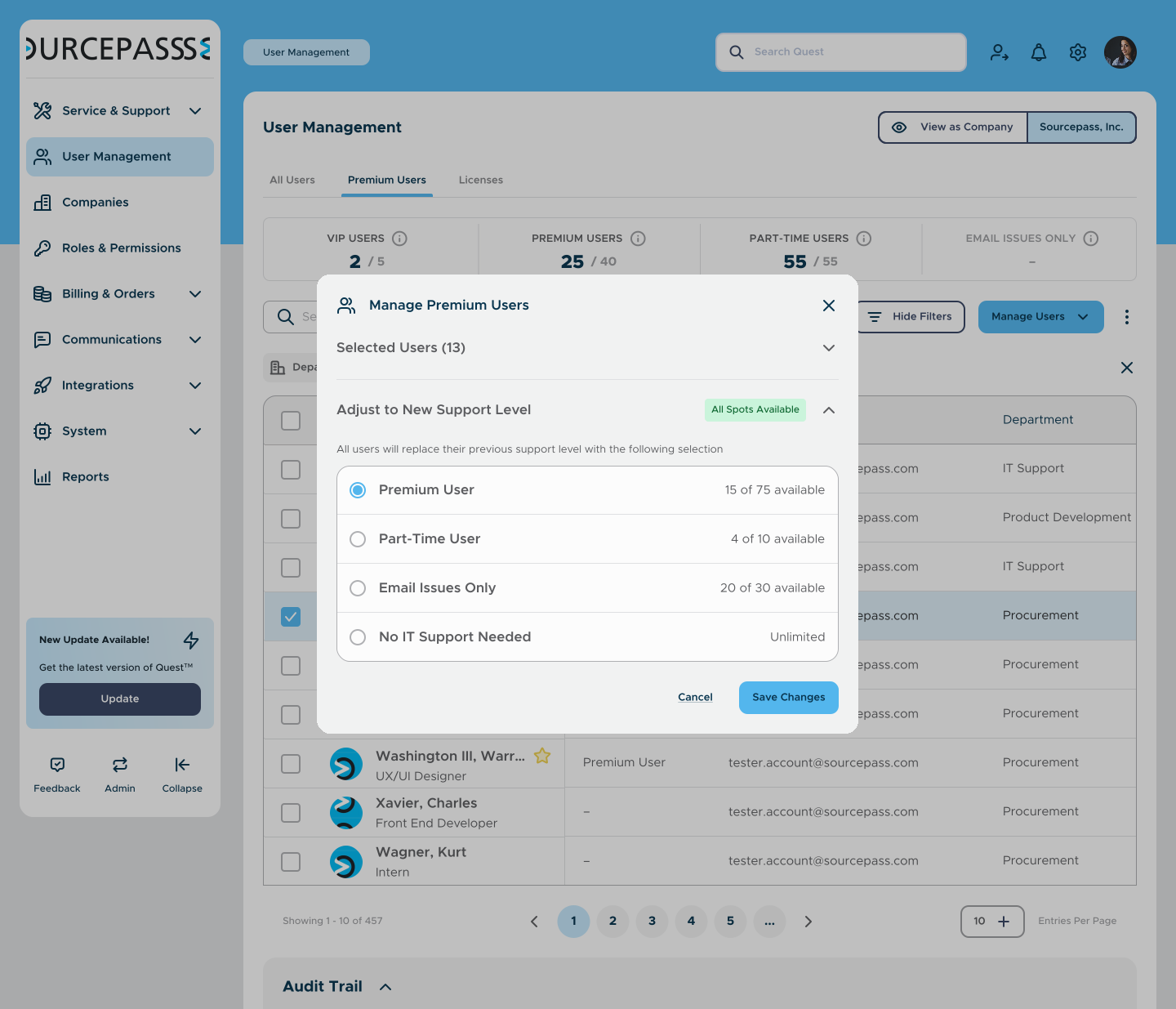
The Premium Users tab empowers Primary Contacts to manage and optimize their team’s IT support in real time. Choose from various support levels based on the needs of your company.

User Mgmt - Premium Users - Manage

Allows Primary Contacts to: 

  • Review all users within their organization.
  • See the current level of IT support each user is receiving.
  • Adjust a user’s support level using the Manage button.

Support levels include: 

  • VIP User 
  • Premium User 
  • Part-Time User 
  • Email Issues Only 
  • No IT Support Needed

Licenses

 A Transparent View
of Microsoft Allocations


The licenses tab provides an inside look at Microsoft licenses assigned to each user.

Easily view how many licenses you’re currently using, along with the total number of allocated licenses based on your company’s agreement.
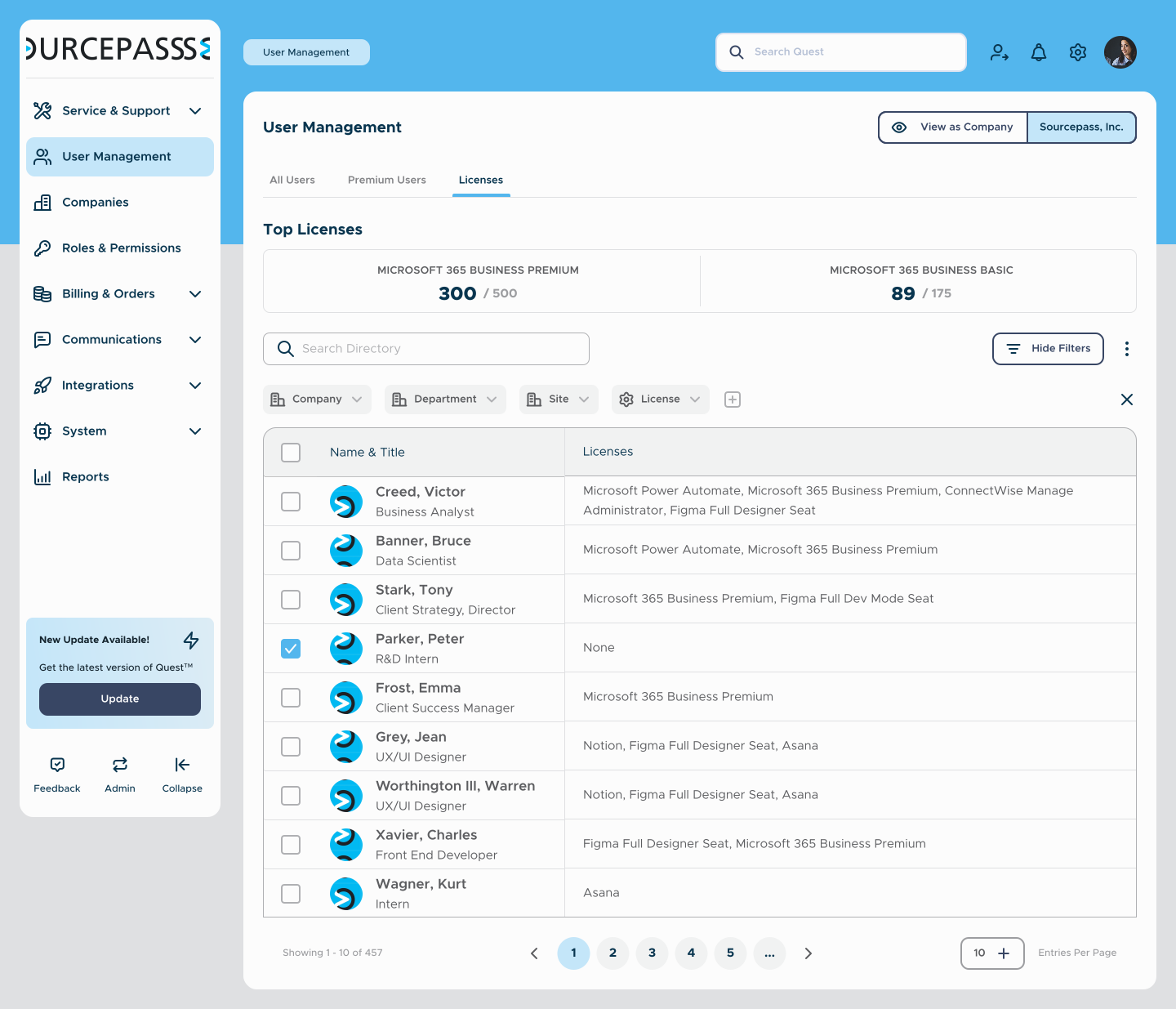
 User Mgmt - Licenses


➡️  Coming Soon: Keep an eye out for an upcoming management feature that will enable Primary Contacts to directly assign and manage license seats for their users.


Onboarding and Offboarding


You asked—we listened!

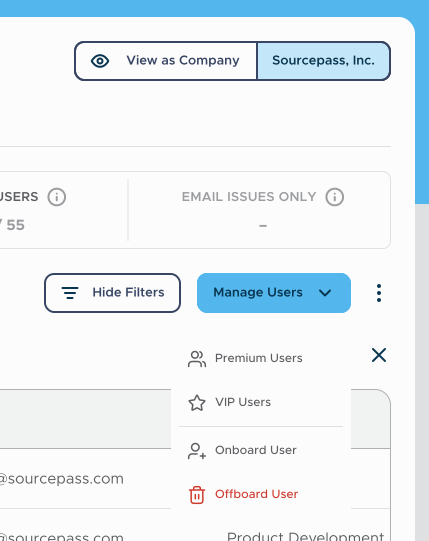
With the user management section, you can directly onboard and offboard users with a few clicks.

User Management - Onboard User Dropdown 

To onboard a user, head to the User Management section. 

  • Click “Onboard User” from the All Users tab 
  • Or go to “Manage Users” > “Onboard User” from the Premium Users tab 
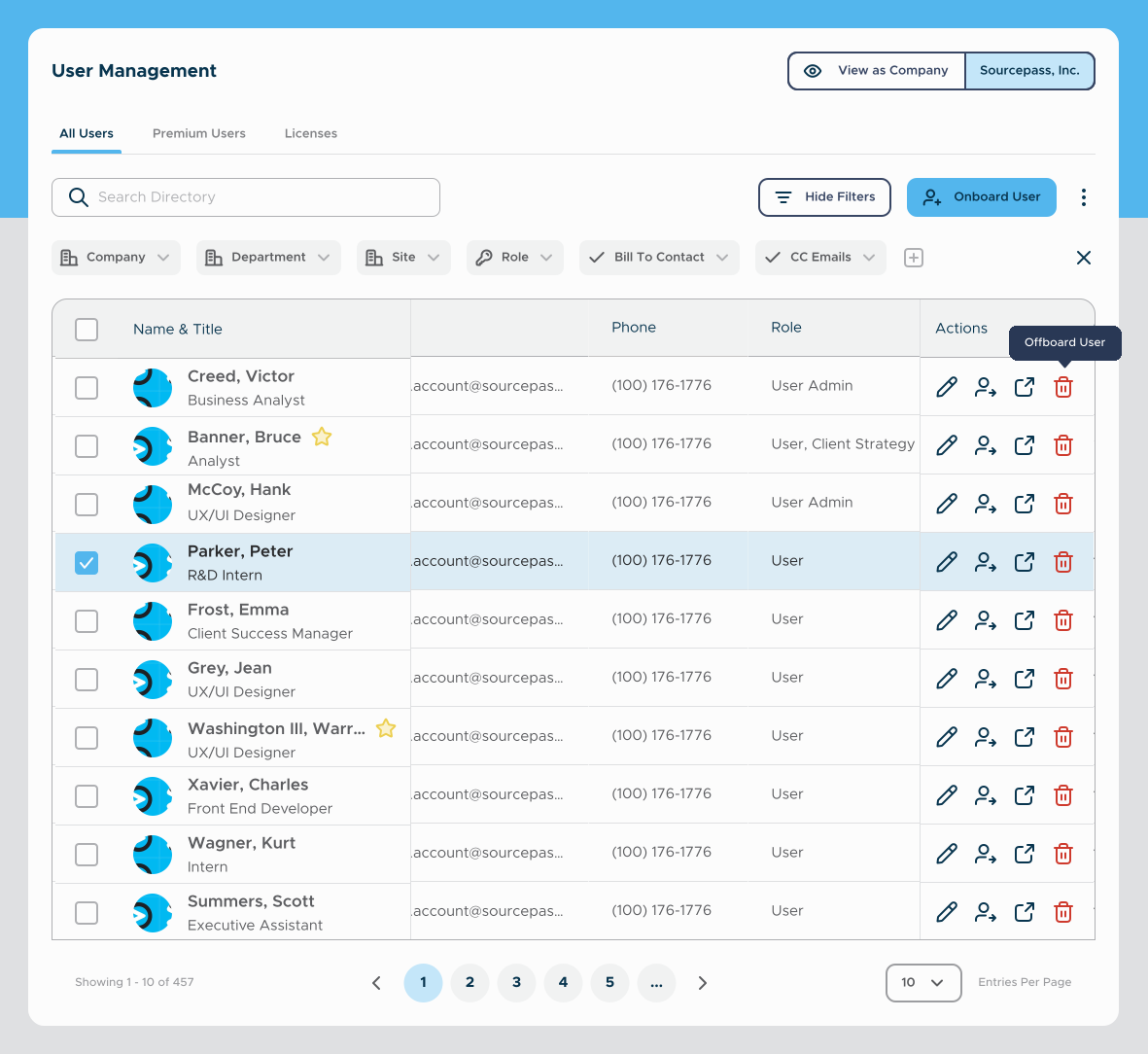
Offboard Users Tooltip 

To offboard a user, you have two options: 

  • Click the trash icon under the user’s row in the All Users tab 
  • Or go to “Manage Users” > “Offboard User” in the Premium Users tab 
  • If you’ve selected a specific user, their info will auto-fill in the form—no extra steps needed.

Stay Tuned for Automated Onboarding and Offboarding Forms!


Join the Waitlist: Once joined, a ticket will be sent to our automation team so we can keep you in the loop.
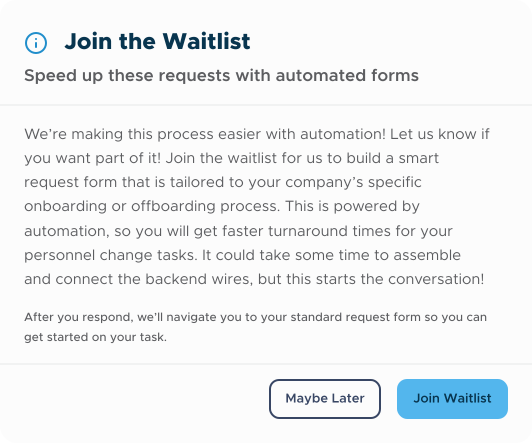
 

Waitlist Modal


Quest® by Sourcepass continues to evolve with your needs—delivering next-generation client experiences through smart technology, intuitive design, and relentless innovation.

Haven’t explored Quest® yet? Download it on the App Store or Google Play, and see how we're redefining IT support—one smart request at a time.